Veracity for Class Maritime Portal
Generate loading plan
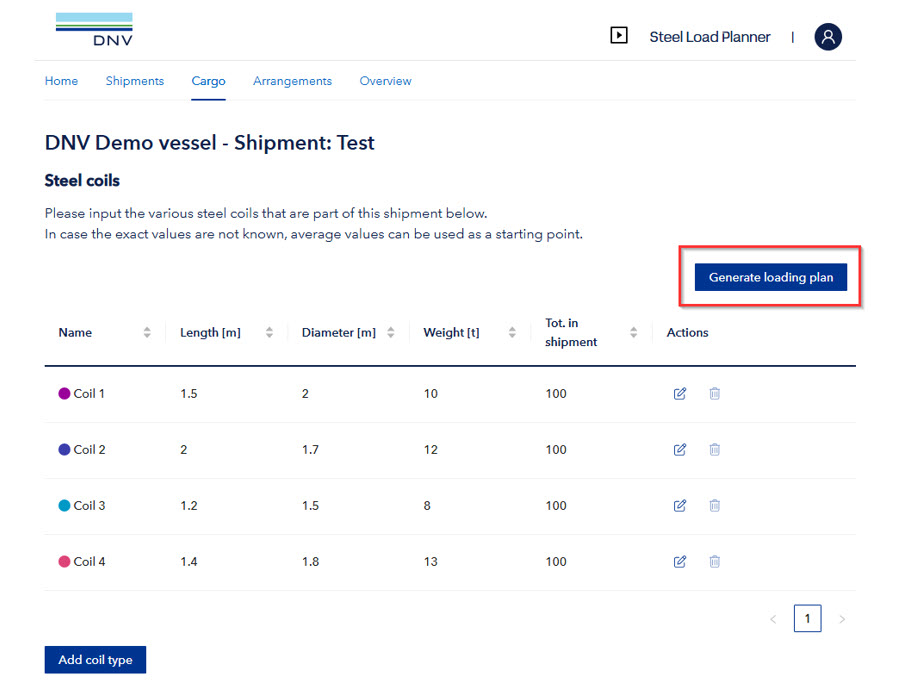
Based on the specified cargo type and quantity, tier and hold arrangements can be proposed by the algorithm. The application identifies the capacities and geometry of cargo holds to provide an optimized cargo distribution that maximizes coil carriage. This can be done by selecting “Generate Loading Plan” in the Cargo tab:
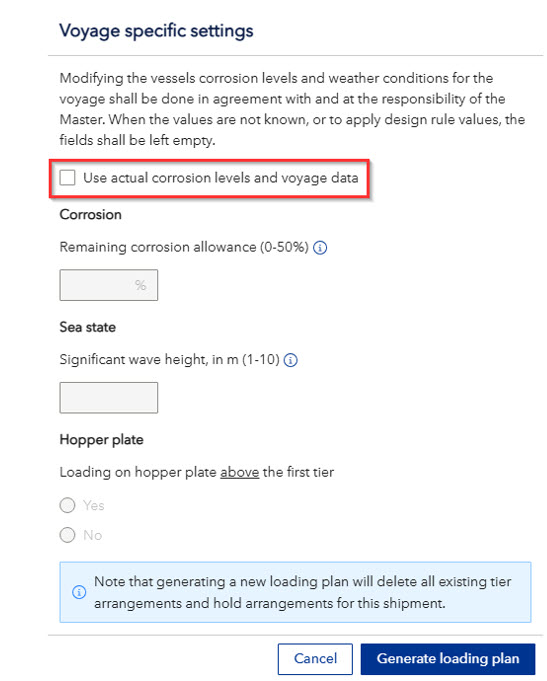
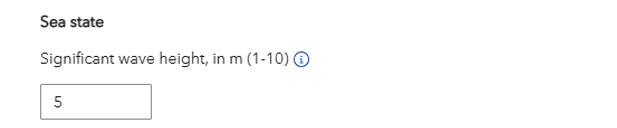
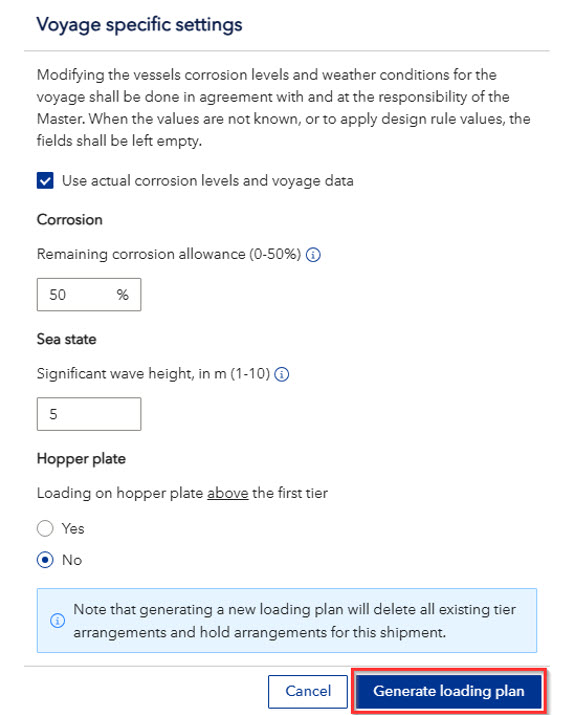
Selecting “Generate Loading Plan” opens a pop-up window where voyage-specific settings can be configured. To enter values for corrosion allowances and sea state, first select “Use actual corrosion levels and voyage data”. This can be done based on vessel’s actual condition and wave environment during planned voyage in agreement with and at the responsibility of the Master. If values are not known or decide to apply design rule values to calculation, the user should leave the box unchecked.
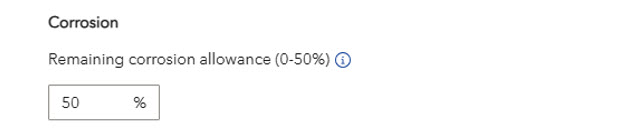
The actual condition of the vessels level of corrosion may be used instead of design rule values. The remaining corrosion allowance can be based on thickness measurements of inner bottom and hopper plating, where available. For vessels in good condition, a maximum value of 50% may be applied at the Masters discretion.
For operation in a restricted area, reduced acceleration may be considered, taking into account the season of the year, the accuracy of the weather forecast and the duration of the voyage. Restricted area means any sea area in which the weather can be forecast for the entire sea voyage or shelter can be found during the voyage.
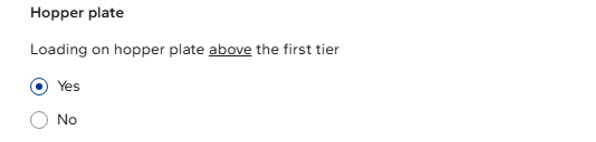
It is possible to generate loading plan with tier arrangements where steel coils will be loaded on hopper plate above first tier. This setting is recommended only for vessels with reinforced hopper structure.
Select “Generate Loading Plan” to start the calculation. Depending on the shipment’s size and complexity, this process may take some time.
While the loading plan is being generated, the screen will be greyed out, and an informational pop-up will appear on top.

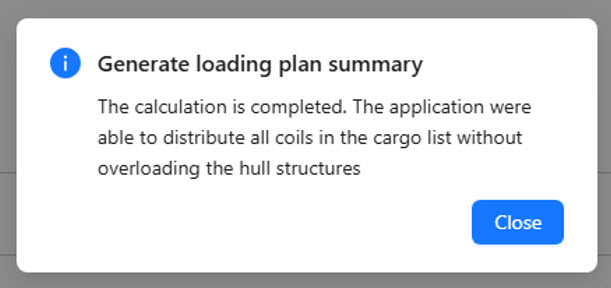
After the calculation is completed, the user is informed by a pop-up window displaying a summary. When closed, further actions can be carried out in Overview tab.